5.1.1 Visual operations
Dataway UI provides list and editor pages for finding APIs, writing scripts, configuring parameters, debugging, publishing and restoring history.
API list
Click Interface in the top navigation. The page has three areas: A API list, B request parameters and C response results. Drag the dividers to resize them.
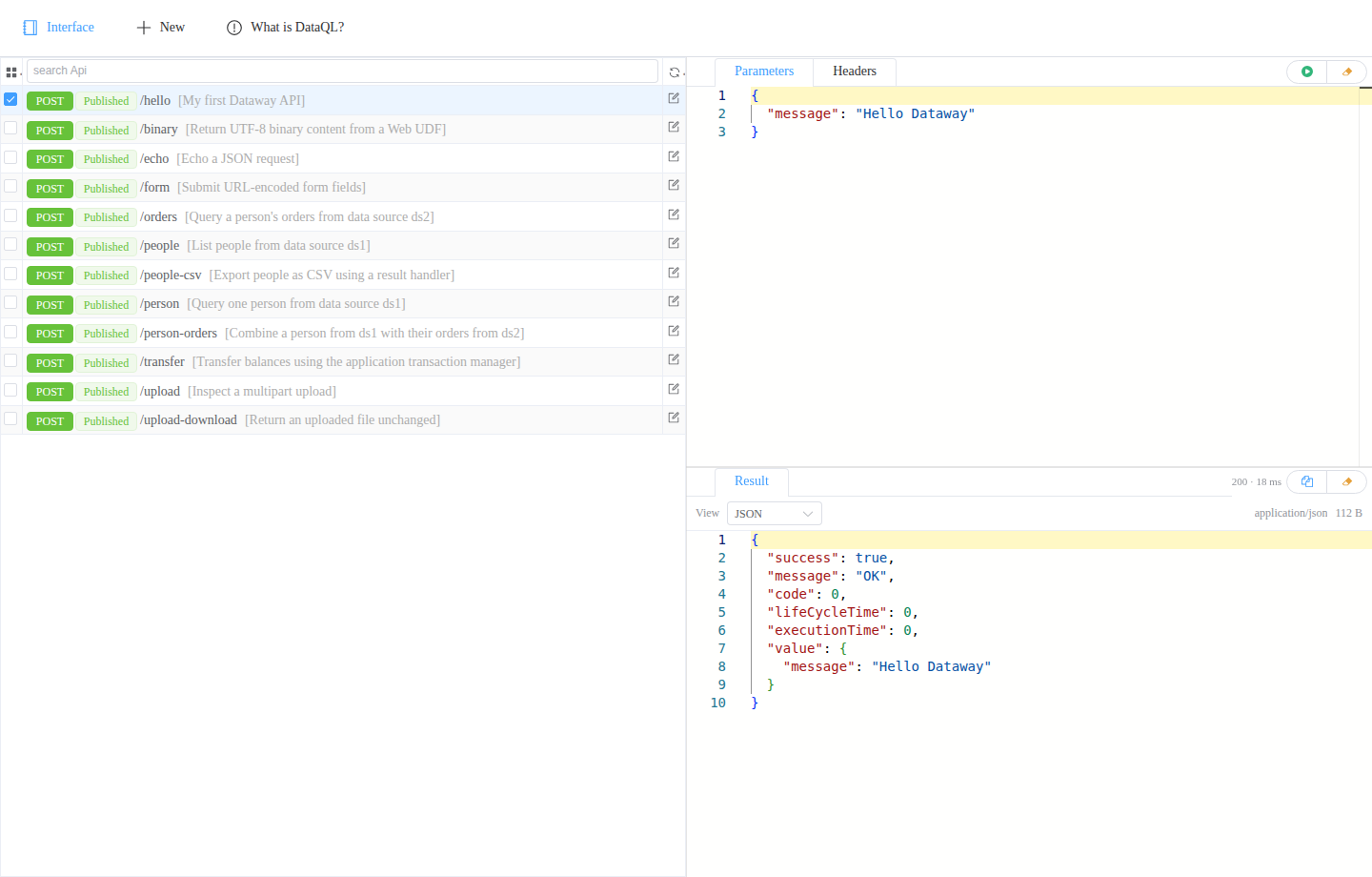
A: API list
- Select: click a row or its checkbox to load the API's parameter examples and headers into area B.
- Search: enter a path or description keyword in search Api to filter the list.
- Directory: click the grid icon to the left of search to filter by a path directory.
- Refresh: click the refresh icon to the right of search to reload the list.
- Edit: click the edit icon at the end of a row to open its editor.
Each row shows the HTTP method, state, path and description. See API states below for state labels.
B: Request parameters
- Parameters: enter JSON parameters. The eraser icon at the top right formats the JSON.
- Headers: add, edit or delete request headers. Checked headers are sent with the call.
- Execute Query: click the green play button at the top right to call the selected published API.
Parameter changes on the list page apply to the current call. Edit and save parameter examples on the editor page to retain them. APIs in Changes state continue to execute their published content.
C: Response results
Result displays the published API response. See D: Results for preview, copy, format and download controls.
Create and edit
Click New in the top navigation to create an API, or open the editor from a list row. Area A is the toolbar, B the script editor, C the test parameters, and D the result.
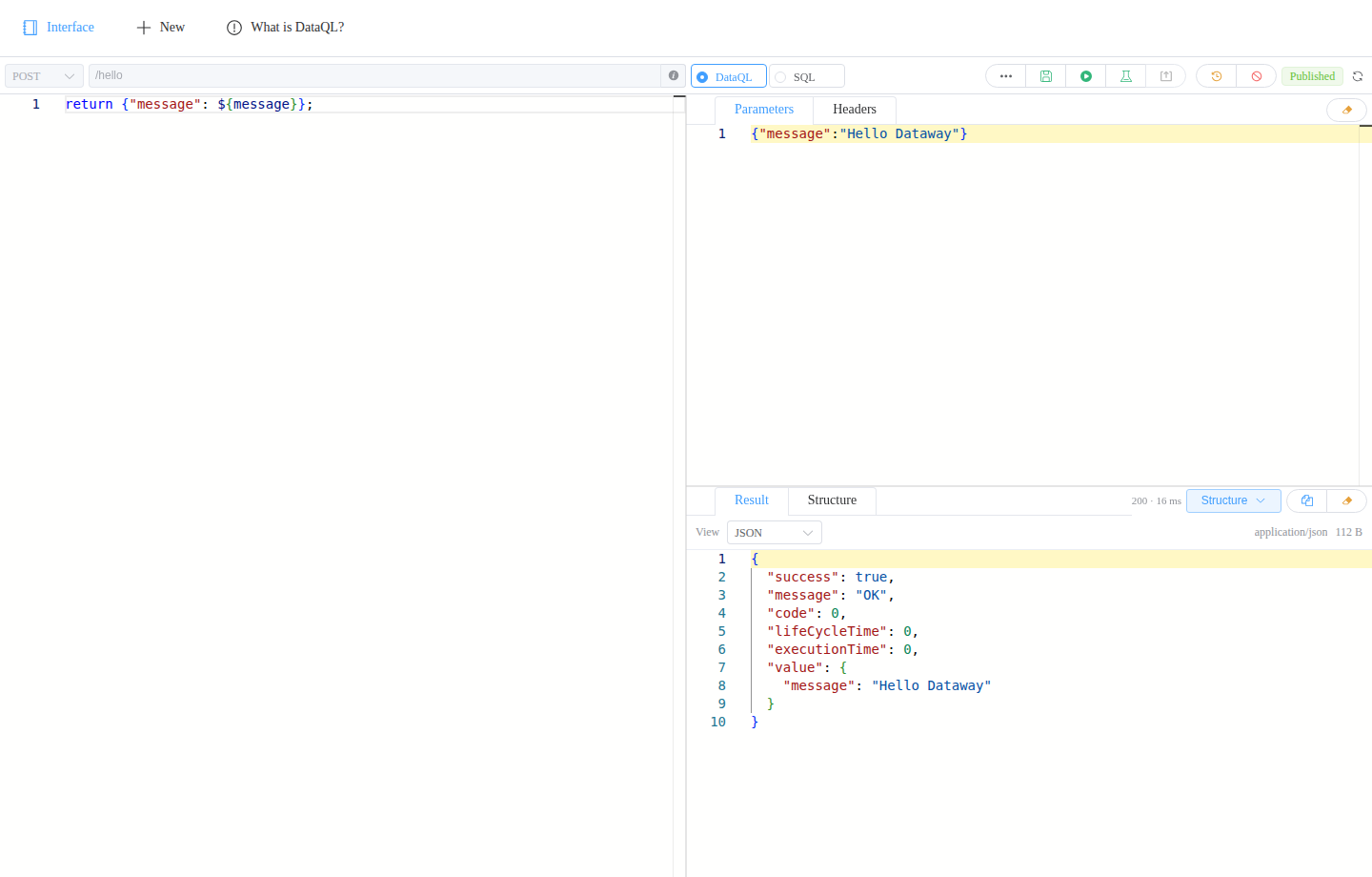
A: Toolbar
Set the HTTP method and API path on the left. Paths start with /, such as /hello. The method and path are fixed after the first save.
Click the information icon beside the path to enter a description in the multiline Description dialog. Click Confirm or Cancel, then choose the DataQL or SQL script type.
The buttons on the right, from left to right, are:
- More Settings (ellipsis): configure parameter wrapping and the wrapper parameter name. See API options.
- Save (disk): save the script, description, parameter examples and execution options.
- Execute Query (green play): run the current editor contents and display the result in area D.
- Smoke Test (flask): test the saved draft. Save current edits first.
- Publish (up arrow): publish after a successful smoke test. Subsequent API calls use this release.
- Release History List (clock): view releases and load a selected record into the editor.
- Disable API / Delete API: disable a published API, or delete an unpublished or disabled API.
The API state appears beside the buttons. Unsaved indicates edits pending save. Existing APIs also provide a Reload API button to load the latest draft.
B: Script editor
Write DataQL or SQL with syntax highlighting, search and replace. Click Execute Query to debug the current contents. See Script support for examples.
C: Test parameters
Enter examples in Parameters and request headers in Headers. Controls work as on the list page. Save retains these values with the API.
D: Results
Result displays the debug response, with the HTTP status and request duration at the top right. The Interface list uses the same preview options.
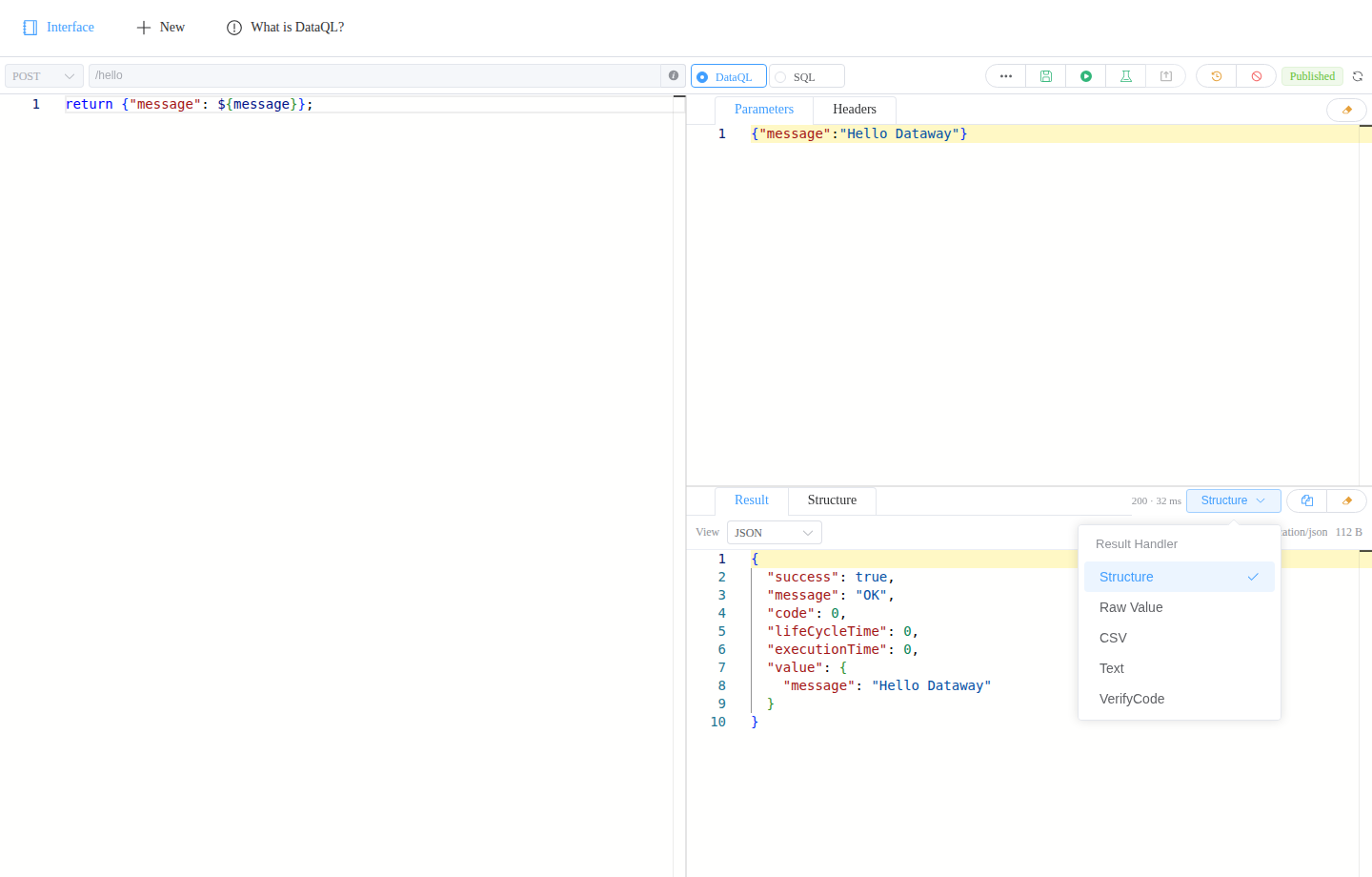
Click the Result Handler dropdown at 1 and select one output mode from the list at 2. Structure is selected by default, with its template editable on the Structure tab. Selecting Raw Value, CSV, Text, VerifyCode or another handler disables template editing and preserves the existing template. The list includes application-registered handlers. Settings are saved with the API and apply to public calls after publication. See Result handlers.
Result selects a preview from the response Content-Type:
- JSON:
application/jsonand types with a+jsonsuffix. Arrays also support Table, including top-level arrays and arrays invalue,dataorresult. - Table:
text/csvandapplication/csv, with support for quoted cells, commas and line breaks. - Text:
text/*,application/xml,application/*+xml,application/javascriptandapplication/x-www-form-urlencoded. HTML, XML and JavaScript are displayed as source text. - Image:
image/*, including SVG, for formats supported by the browser. - File: other types or responses without Content-Type, with the filename, type, size and a download action.
Changing View affects only the current display. Tables preview up to 200 rows; text, JSON and downloads retain the full content. Text uses the response charset, with UTF-8 as the default. Invalid JSON is displayed as text, and images that cannot be displayed offer a download.
- Copy icon: copy the current result.
- Eraser icon: format a JSON result.
- Download icon or Download file in the File view: save the original content using the response filename.
API states
- Editor: the draft has not been published.
- Published: the API is published and its draft matches the active release.
- Changes: the API is published with draft changes awaiting publication.
- Disable: the API is disabled; its draft and history remain available.
Save updates the draft. Use Save → Smoke Test → Publish to make it available to callers. Test again after editing or reloading. See Version management for the relationship between drafts and releases.
History, disabling and deletion
Restore history
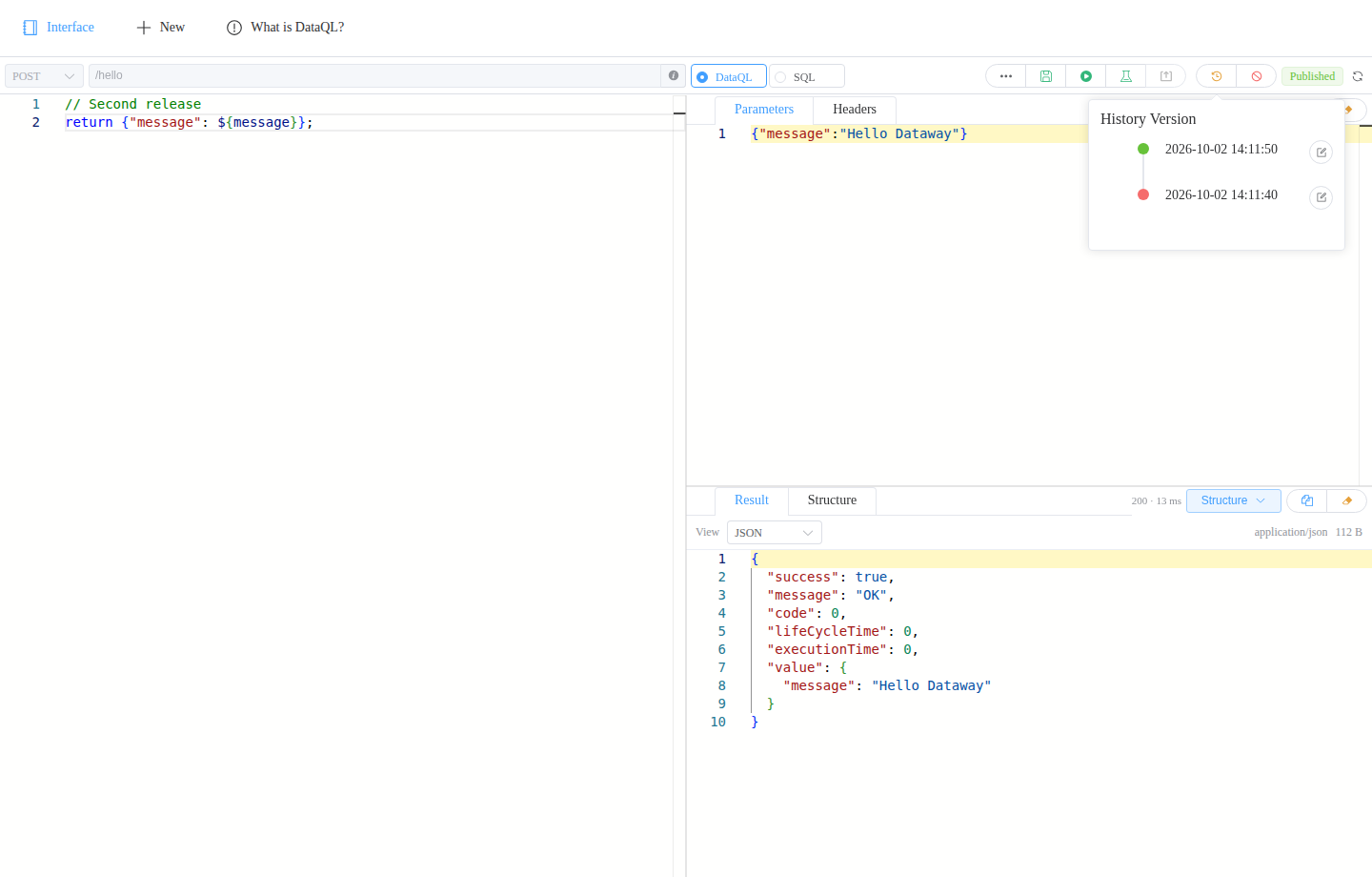
- Click the clock button at 1 (Release History List) to open History Version.
- Choose a release and click its restore button at 2 to load that release into the editor.
- Review the script and parameters, then use Save → Smoke Test → Publish to make the restored contents active.
Loading a release that differs from the draft shows Unsaved. Until you publish again, callers continue to use the currently active release.
Disable an API
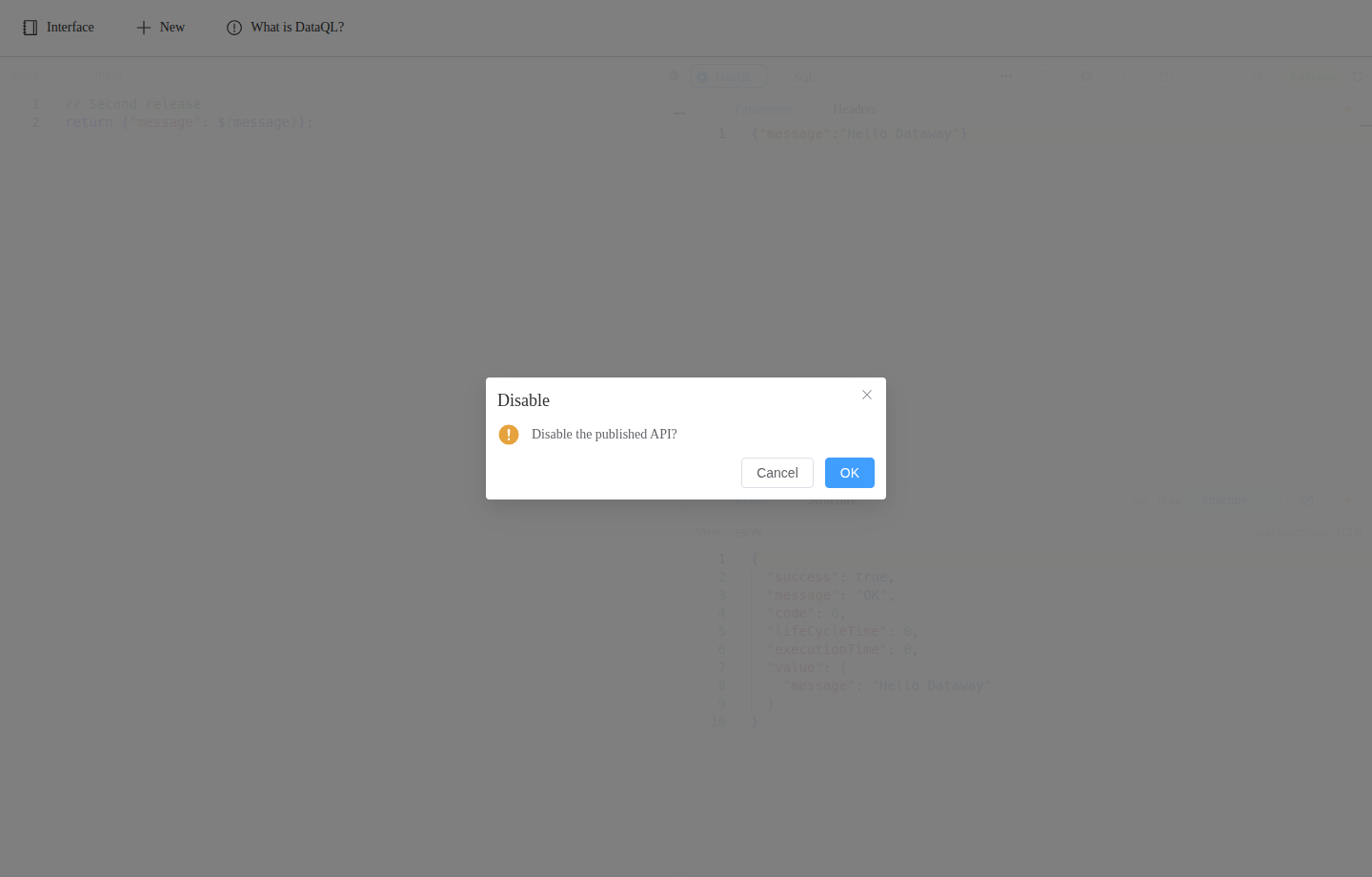
- Open an API in Published or Changes state and click Disable API at 1.
- Click OK at 2 to disable it, or Cancel to leave it active.
The state changes to Disable and public calls stop. Its draft and history remain available. Use Smoke Test → Publish to resume service.
Delete an API
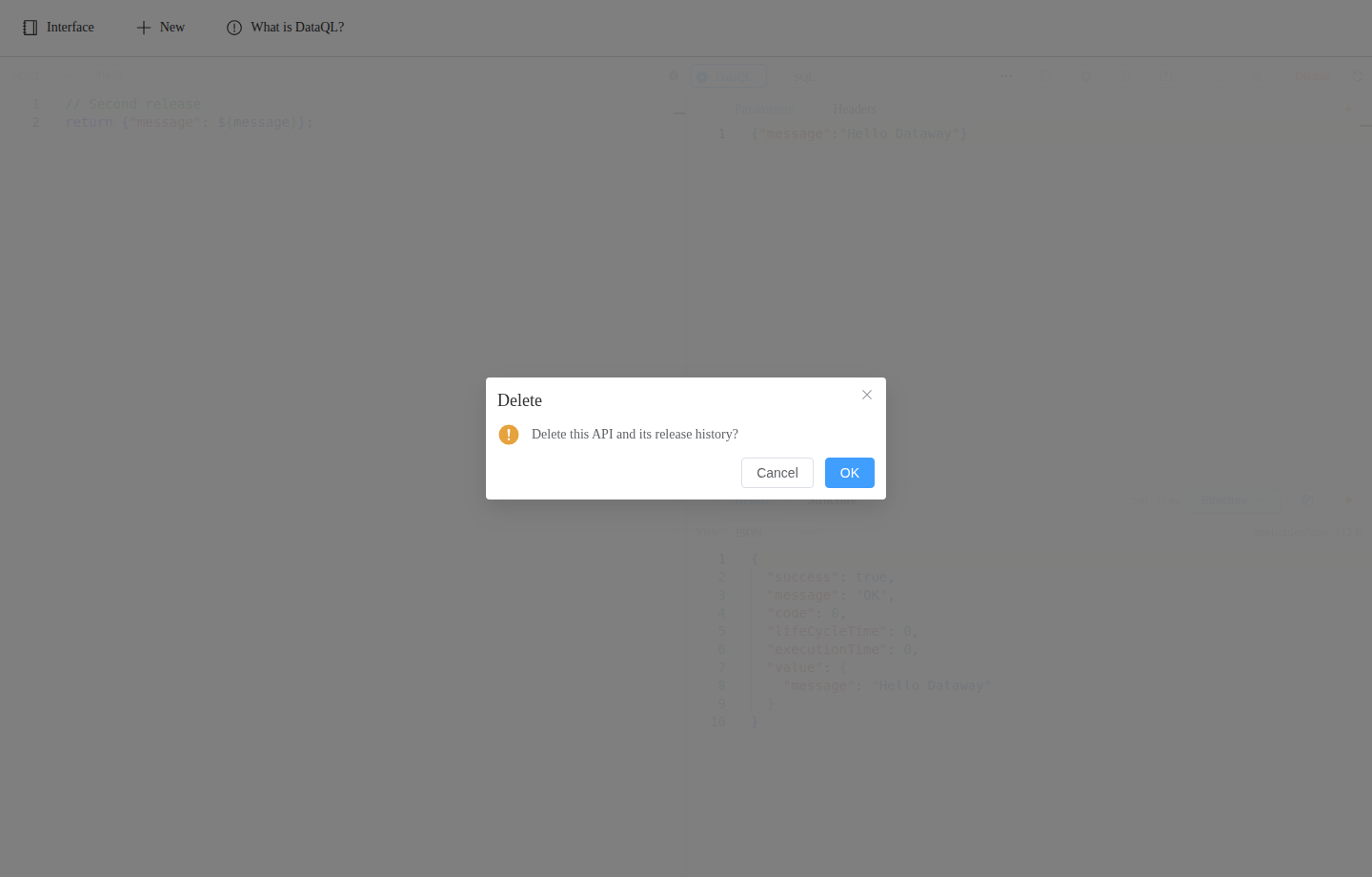
- Open a saved unpublished API, or disable a published API first, then click the trash button at 1 (Delete API).
- Click OK at 2 to delete it, or Cancel to keep it.
Deletion removes the API and all release history; leaving or reloading prompts about unsaved changes, and revision conflicts require keeping local edits before reloading and merging.
See Programmatic management for Java and management HTTP operations.